Installation Guide
Get MousePlayer up and running on your website in less than 2 minutes. No heavy configuration required.
Locate Your Property
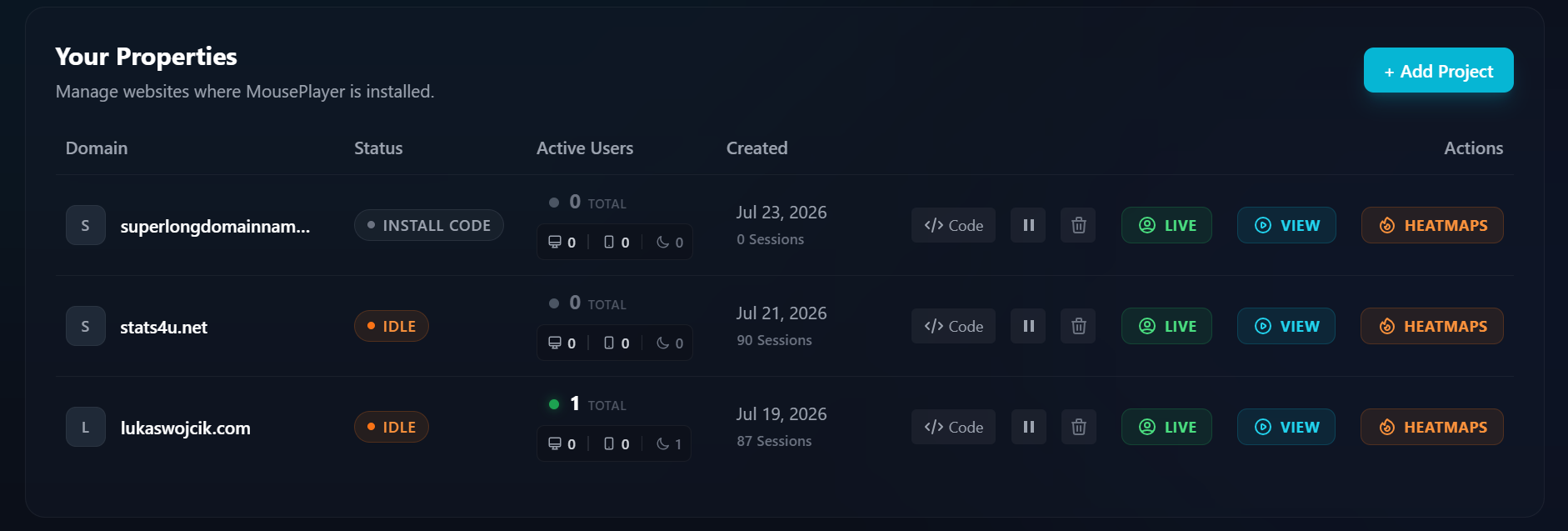
Log in to your MousePlayer dashboard. Under the Your Properties section, you will see a list of domains associated with your account. If your domain has not been set up yet, it will display an INSTALL CODE status badge.
Click the </> Code button located in the Actions column next to the domain you want to track.
Copy the Tracking Snippet
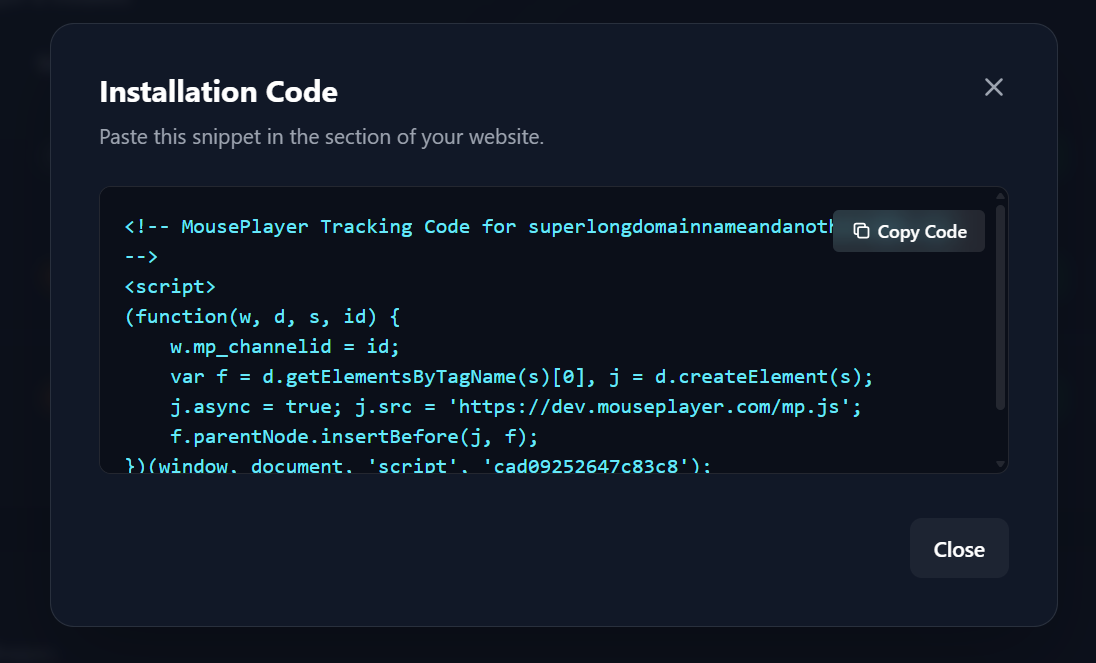
An Installation Code modal will appear on your screen. This window contains the unique asynchronous JavaScript snippet generated specifically for your property (linked by your unique id).
Click the Copy Code button in the top right corner of the code block to copy the snippet to your clipboard.
Paste Code into Your Website
Open your website's source code or Tag Manager. Paste the copied snippet directly into the <head> section of your HTML across all pages where you want to enable session recording and live viewing.
Verify Installation
Save your changes and publish your website. Visit your live domain and refresh the page. Navigate back to the MousePlayer dashboard—your domain status will automatically update from INSTALL CODE to IDLE or show active users if visitors are currently on your site.
Developer Tip: CMS & Tag Managers
If you are using WordPress, you can paste the snippet into your theme's header.php file or use a plugin like "Insert Headers and Footers". If you are using Google Tag Manager (GTM), create a new Custom HTML Tag, paste the snippet, and set the trigger to All Pages.